
Descripción
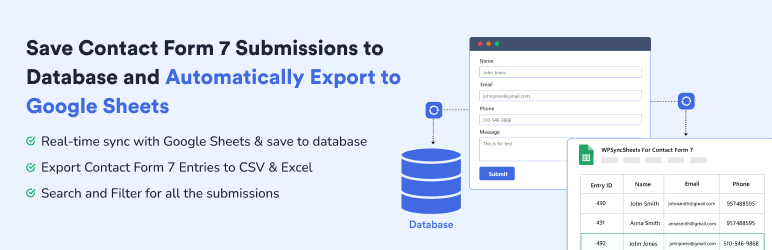
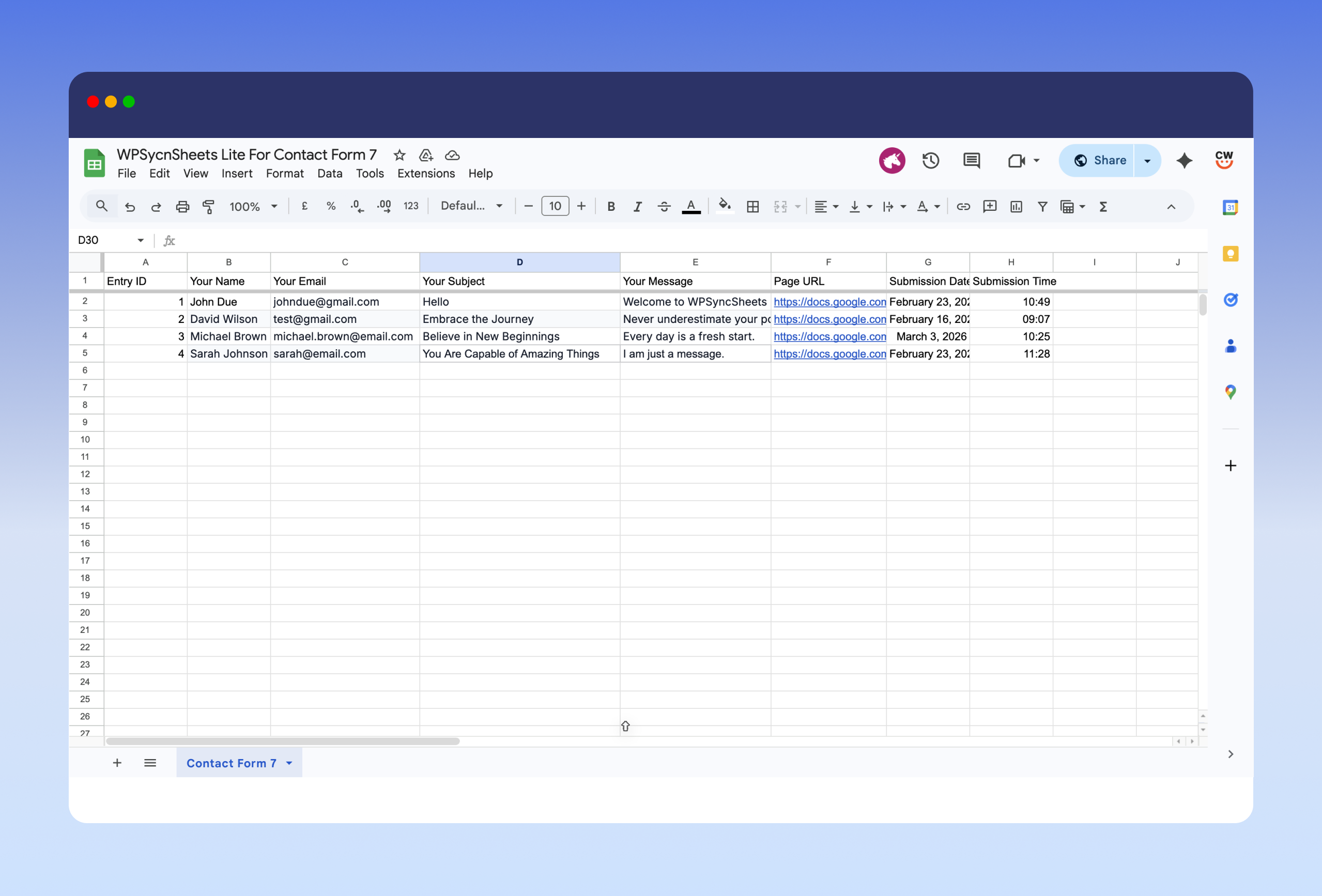
WPSyncSheets For Contact Form 7 automatically exports and syncs your Contact Form 7(CF7) submissions to a single Google Sheet while securely saving every entry in your WordPress database. Contact Form 7 Google Sheets Connector helps you to get real-time Google Sheets integration with built-in database storage to prevent data loss. Manage all your Contact Form 7 database(CFDB7) entries in one place with powerful, reliable, and easy-to-use features.
If you are looking for Google Sheets and Database Addon for Contact Form 7 this addon is the best choice. It lets you save and manage form submissions directly in your WordPress database and sync Contact Form 7 entries to Google Sheets.
Demo | Hojas de muestra | Docs | Soporte | Pro
WPSyncSheets para Contact Form 7 Características
-
Contact Form 7 to Google Sheets Integration
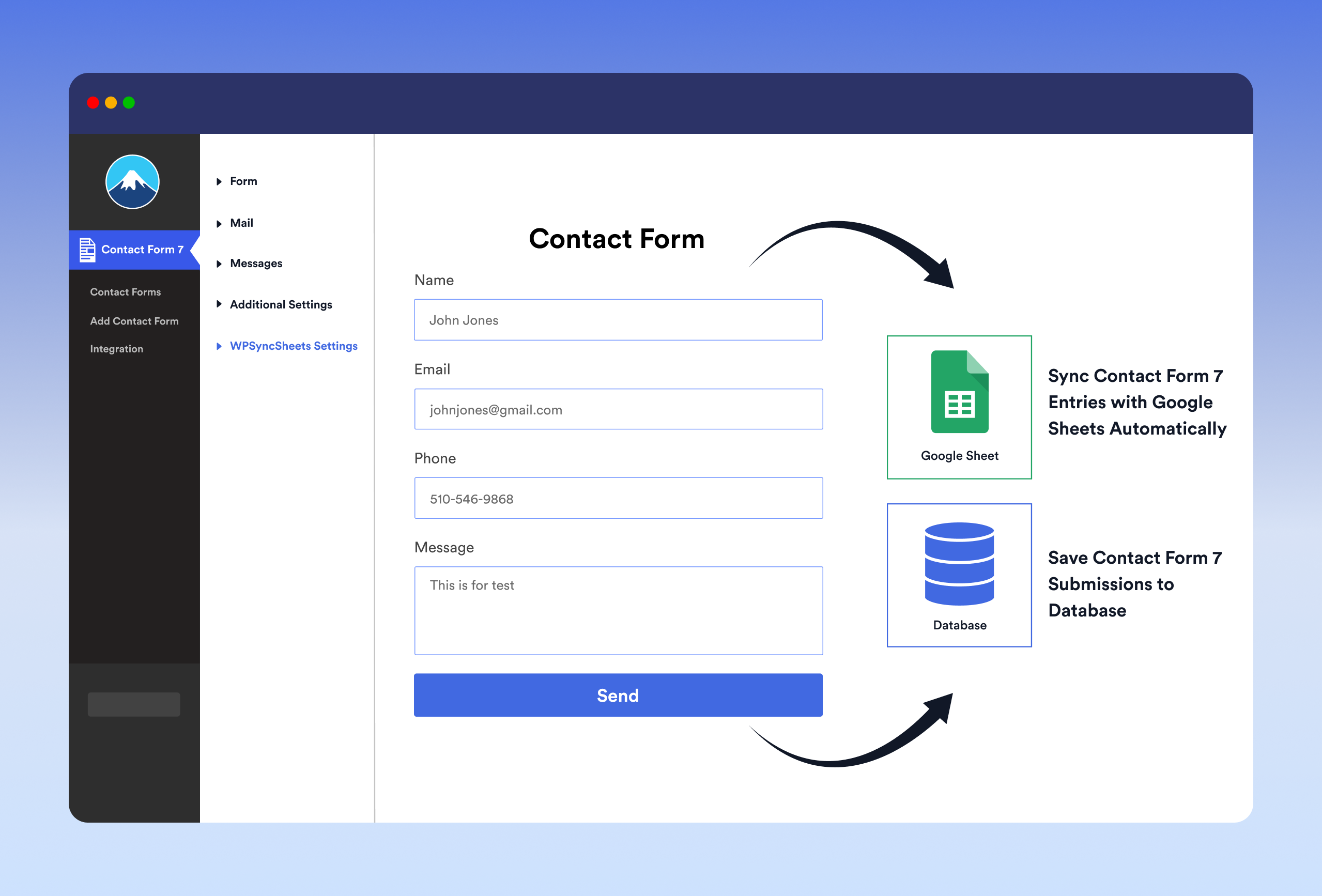
Connect Contact Form 7 with Google Sheets and save form entries to database in real time. CF7 Google Sheets Connector is also create a new sheet or select an existing one, add new tabs automatically, and map which form fields to save. WPSyncSheets For Contact Form 7 acts as a secure connector and can store data like name, email, IP address, page URL, and submission date. Data is synced instantly using secure Google authentication, and no Google account or Drive data is stored by the plugin author. -
One-Click Google Sheets Connection & Setup Wizard
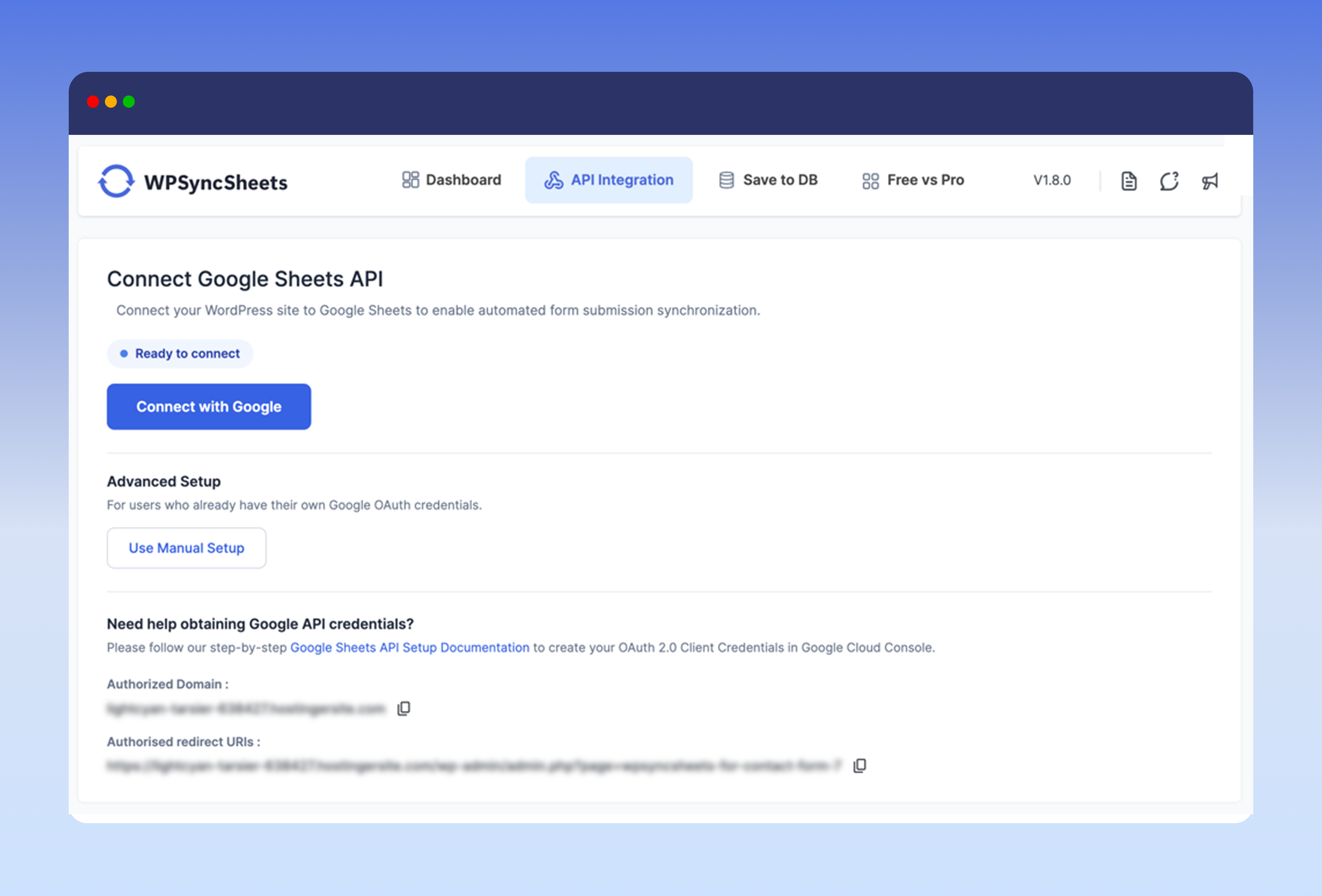
Connect Contact Form 7 to Google Sheets in one click, with no Google Cloud project, API keys, or Client ID setup required. A guided Setup Wizard walks you through connecting your account, choosing a spreadsheet, mapping your form fields, and running a test entry. Prefer to use your own Google API credentials? That option is still available. -
Save Form Submissions in Database
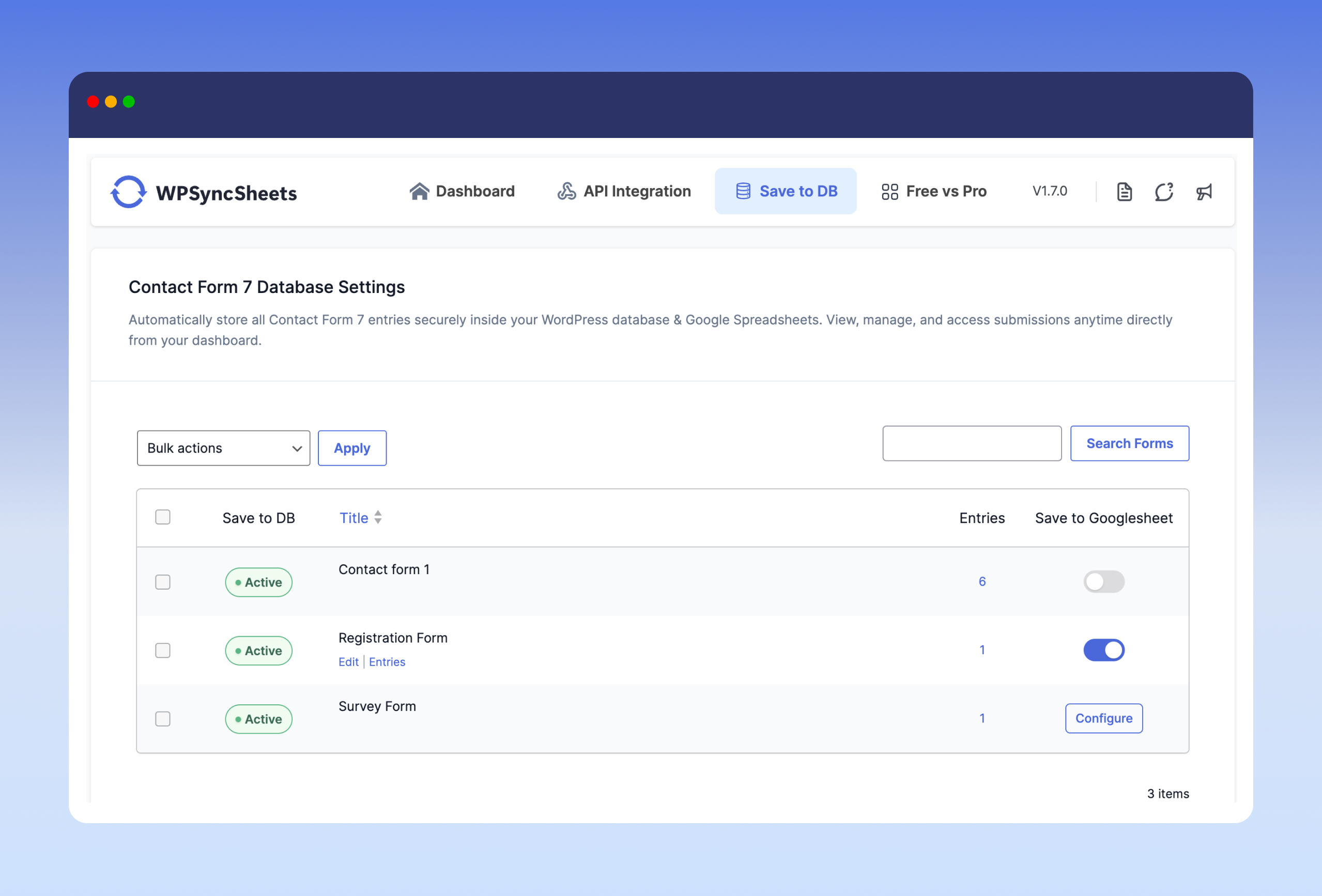
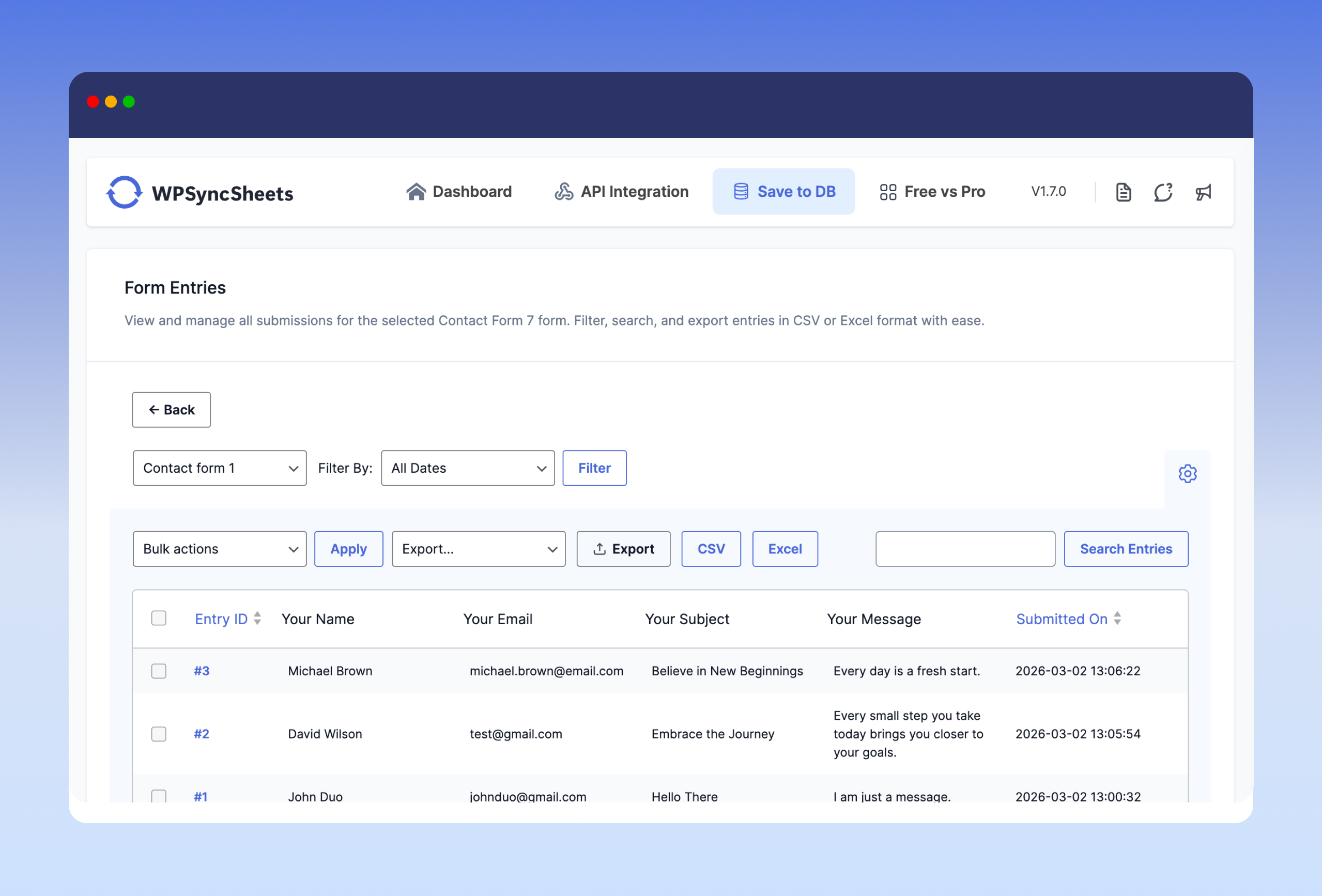
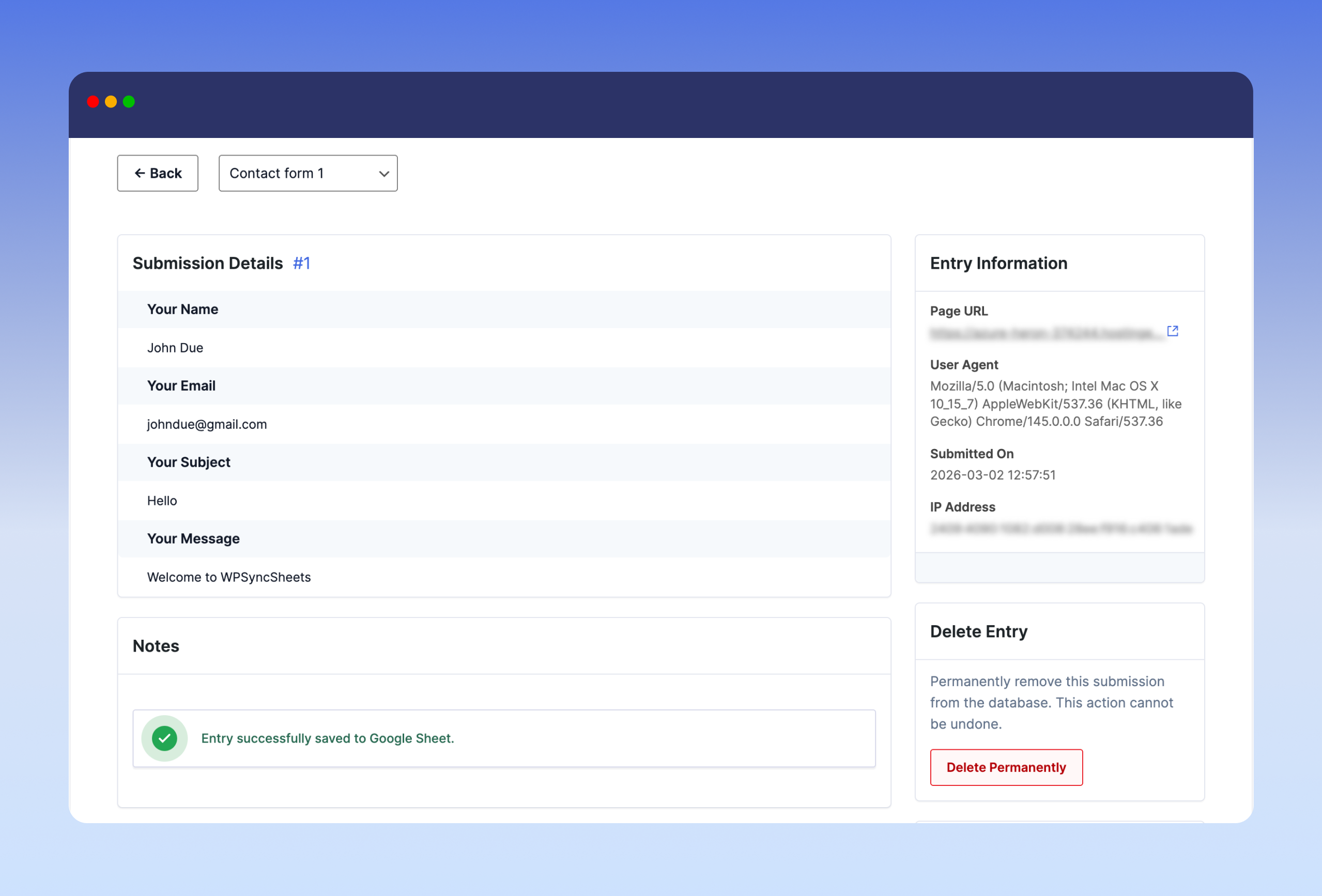
Database Addon for Contact Form 7 lets you save Contact Form 7 submissions to your WordPress database. It also stores all the form entries in a single optimized database table and Google Sheets. It has ability to displays the entry count for each form with search and filter options. Each contact form 7 submission has its own entry detail page to add notes, show submission date, shop page url and many more. -
Export Contact Form 7 Entries to Google Sheets, CSV & Excel
CF7 Google Sheet Connector is the bridge between WordPress plugin Contact Form 7 and Google Sheets. It can help you to export all your form submissions to Excel and CSV which has already stored within the WordPress database. WPSyncSheets For Contact Form 7 plugin has also ability to export entries with date filter (Today, Last 7 Days, This Month, Custom Range) option and form wise cf7 entries export. -
Modern & Elegant Dashboard for Easy CF7 Entry Management
WPSyncSheets For Contact Form 7 includes a clean dashboard inside WordPress admin that shows all Contact Form 7 forms and their connection status with Google Sheets or Save to Database. You can manage all integrations from CF7 Google Sheets or Database.
Upgrade to Pro Features
✅ Edit Sheet Headers – Rename spreadsheet columns from plugin settings
✅ Sort Sheet Headers – Reorder columns to match your desired field layout
✅ Payment Status Control – Sync entries only after PayPal or Stripe payment is successful
✅ Save File Uploads – Store uploaded files and add clickable links in the spreadsheet
You can check out the user guide to easily setup the plugin or watch the below video on How to Export Contact Form 7 Entries
Related Import-Export Google Sheets Plugins
WPSyncSheets connects WordPress and WooCommerce platforms with Google Sheets. Our mission is to help businesses automate data transfer, simplify operations, and reduce repetitive tasks through real-time, two-way data synchronization.
🔸 WPSyncSheets For WooCommerce: Import Export WooCommerce Orders, Products, Customers & Coupons.
🔸 WPSyncSheets For Gravity Forms: Send Gravity Forms submissions to Google Sheets in real-time.
🔸 WPSyncSheets For Core: Import, Export & Bulk Edit WordPress Posts and Pages via Google Sheets.
🔸 WPSyncSheets For Elementor: Map & Sync Elementor Form Entries to Google Sheets in Real Time.
🔸 WPSyncSheets For Document Library Pro: Sync Document Library Pro documents with Google Sheets.
🔸 WPSyncSheets For WPForms: Map & Sync WPForms Entries to Google Sheets.
🔸 WPSyncSheets For Ninja Forms: Automatically Sync Ninja Form Entries to Google Sheets.
🔸 WPSyncSheets For Fluent Forms: Sync Fluent Form Entries to Google Sheets in Real Time.
🔸 WPSyncSheets For Formidable Forms: Automatically Map and Sync Formidable Form Entries to Google Sheets.
External services
This plugin relies on the following third-party services. Nothing is sent to any of them until you connect the plugin or explicitly opt in.
Google Sheets and Google Drive
Connecting a Google account is what makes the plugin work: your Contact Form 7 entries are written to a spreadsheet in your own Google Drive.
What is sent, and when:
- When you connect your account, the plugin requests a single read of your Google account email address (via the Google OAuth userinfo endpoint) so it can show which account is connected.
- When you pick a spreadsheet, the plugin reads the names and IDs of spreadsheets in your Drive, and the sheet/tab names inside the spreadsheet you select.
- When a Contact Form 7 form is submitted, the mapped field values for that submission are written to your chosen spreadsheet. Only the fields you map are sent.
The requested Google permissions are limited to Google Sheets access and read-only Google Drive metadata. This service is provided by Google.
- Terms of service: https://policies.google.com/terms
- Google APIs terms of service: https://developers.google.com/terms
- Privacy policy: https://policies.google.com/privacy
WPSyncSheets connection service (api.wpsyncsheets.com)
Used only if you choose the One-Click connection option instead of entering your own Google API Client ID and Secret. In that mode a service operated by WPSyncSheets performs the Google OAuth handshake on your behalf, so you do not have to create your own Google Cloud project. If you connect using your own Client ID and Secret, this service is not contacted at all.
What is sent, and when:
- When you start a one-click connection: your site URL, home URL, plugin version, plugin identifier, and a randomly generated installation identifier.
- When the connection completes: the installation identifier and the one-time authorisation code returned by Google.
- When an access token expires and is renewed: the installation identifier and the refresh token.
- When you disconnect the account: the installation identifier.
Your form entries are never routed through this service; form data always goes directly from your site to Google.
- Terms of service: https://www.wpsyncsheets.com/terms-and-conditions/
- Privacy policy: https://www.wpsyncsheets.com/privacy-policy/
WPSyncSheets feedback service (feedback.wpsyncsheets.com)
Used only if you deactivate the plugin, fill in the optional feedback form, and tick the consent checkbox. Choosing “Skip and Deactivate”, or deactivating without consenting, sends nothing.
What is sent, and when: the deactivation reason you select, any comments you type, the plugin name, version and type, your site URL, and your site’s administrator email address. This is sent once, at the moment you submit the form.
- Terms of service: https://www.wpsyncsheets.com/terms-and-conditions/
- Privacy policy: https://www.wpsyncsheets.com/privacy-policy/
Capturas de pantalla

Instalación
- Sube toda la carpeta ‘contactsheets-lite’ al directorio ‘/wp-content/plugins/’.
- Activate the plugin through the Plugins screen (Plugins > Installed Plugins).
You will find WPSyncSheets For Contact Form 7 menu in your WordPress admin screen.
Para un uso básico, echa un vistazo a la Documentación del plugin.
FAQ
-
¿Puedo sincronizar varios formularios de Contact Form 7 con distintas hojas de cálculo de Google?
-
Yes, each form can be connected to a separate spreadsheet or sheet tab based on your settings.
-
¿Por qué los datos de los formularios no se envían a Google Spreadsheet o solo dan vueltas?
-
Adding data to the spreadsheet can take a few moments, but if entries never show up, try the following:
- Disconnect and reconnect your Google account from the plugin settings page.
- Make sure the selected spreadsheet and sheet tab still exist and have not been renamed or deleted.
- Avoid naming a sheet tab something that looks like a cell reference (for example “CF7” or “A1”), as Google Sheets can interpret those as a cell address.
- If you connected using your own Google API credentials, confirm that both the Google Sheets API and the Google Drive API are enabled in your Google Cloud project.
-
¿Puedo reordenar/agregar/editar las columnas de cabecera de las hojas en Google Spreadsheets?
-
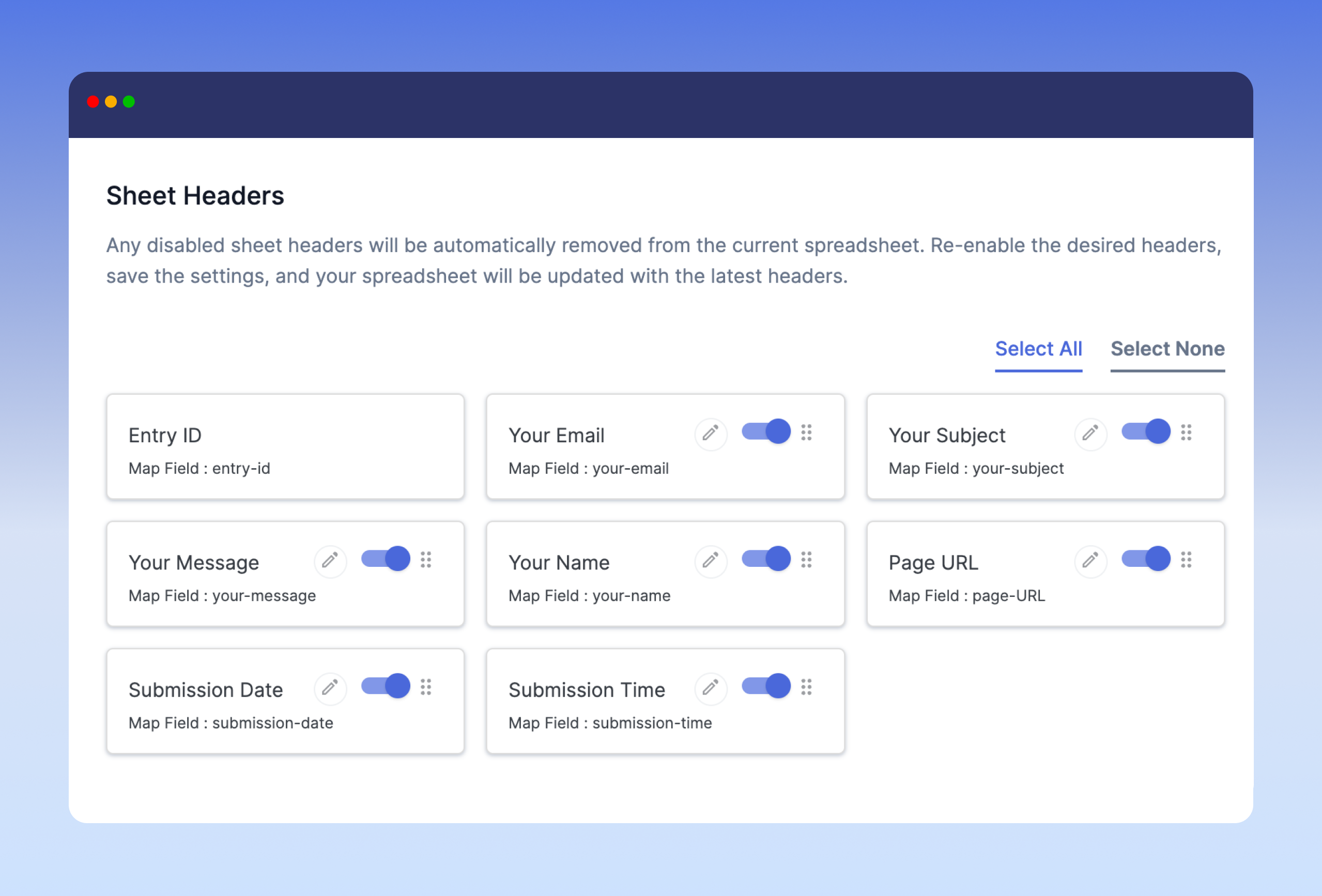
Renaming and reordering spreadsheet columns from the plugin settings is available in the Pro version. In the free version you can choose which mapped fields are active, and the sheet headers are generated from that selection.
-
Is it possible to sync data only after a successful payment (PayPal/Stripe)?
-
Sí, la versión Pro ofrece sincronización condicional basada en el estado del pago completado.
-
¿Cómo registra el plugin la fecha y hora de envío del formulario?
-
You can enable the Submission Date & Time option to automatically include the exact date and time with each entry in Google Sheets and the database.
-
¿Guarda el plugin los envíos de Contact Form 7 en la base de datos de WordPress?
-
Sí, el plugin almacena automáticamente todas las entradas de Contact Form 7 de forma segura en su base de datos de WordPress.
-
¿Puedo activar el almacenamiento en la base de datos solo para determinados formularios?
-
Sí, puedes activar o desactivar el almacenamiento en base de datos individualmente para cada formulario de Contact Form 7.
-
Where can I view saved Contact Form 7 entries?
-
All saved entries can be viewed directly from the WPSyncSheets For Contact Form 7 plugin dashboard. You can filter, search, and manage entries form-wise.
-
¿Puedo exportar entradas guardadas de Contact Form 7?
-
Sí, puedes exportar entradas en formato CSV o Excel con opciones de búsqueda y filtrado de fechas.
-
Will my data be lost if Google Sheets sync fails?
-
No, even if Google Sheets sync fails, your form submissions are still safely stored in your WordPress database (if database saving is enabled).
-
Do I need to create a Google Cloud project or API keys?
-
No. The One-Click connection handles the Google authorisation for you, so no Google Cloud project, Client ID, or Client Secret is needed. If you would rather use your own Google API credentials, that option is still available on the settings page.
-
Can I run the Setup Wizard again later?
-
Yes. The Setup Wizard can be restarted at any time from the plugin settings page if you want to reconnect your account or reconfigure a form.
-
¿Necesito conocimientos de codificación para utilizar este plugin?
-
No, el plugin es fácil de usar y está diseñado para no desarrolladores. Todos los ajustes se gestionan a través de una sencilla interfaz.
Reseñas


Colaboradores & Desarrolladores
“CF7 Google Sheets Connector & Save to Database – WPSyncSheets For Contact Form 7” es software de código abierto. Las siguientes personas han contribuido a este plugin.
Colaboradores

“CF7 Google Sheets Connector & Save to Database – WPSyncSheets For Contact Form 7” ha sido traducido en 1 idioma. Gracias a los traductores por sus contribuciones.
¿Interesado en el desarrollo?
Revisa el código, echa un vistazo al repositorio SVN, o suscríbete al registro de desarrollo por RSS .
Historial de cambios
1.8.0 – Wednesday, 16th September 2026
- Added: Interactive Setup Wizard for guided onboarding and initial setup.
- Added: One-Click direct connection to Google Sheets.
- Added: Streamlined form selection and configuration workflow.
1.7.4 – Thursday, 16th July 2026
- Improved: Code optimizations.
1.7.3 – Tuesday, 23rd June 2026
- Fix: Hidden field type (CF7 [hidden] tag) is now detected and listed in the Sheet header mapping panel.
1.7.2 – Saturday, 30th May 2026
- Tested with WordPress 7.0.
1.7.1 – Tuesday, 18th March 2026
- Cambiado: Actualizado el dominio de texto del plugin de wpssc a contactsheets-lite para que coincida con el slug del plugin.
- Cambiado: Archivo de plantilla de traducción (.pot) regenerado.
1.7.0
- Nuevo: Agregada una opción para activar o desactivar el guardado de los envíos de Contact Form 7 en la base de datos de WordPress.
- New: Added a dedicated “Save to DB” tab in the admin panel.
- Nuevo: Se ha introducido un listado de formularios separado para los formularios con almacenamiento en base de datos habilitado.
- Novedad: Se ha agregado una página dedicada a las entradas para ver los envíos almacenados en la base de datos.
- Improvement: Enhanced data reliability with optional dual storage (Google Sheets and Database).
1.6.9.7
- Fixed missing icons on the Form Settings page
- Se ha renovado la interfaz de usuario y la interfaz de usuario de los ajustes con un flujo de configuración mejorado
- Optimización del código y mejora del rendimiento
1.6.9.6
- Código optimizado
1.6.9.5
- Probado con Contact Form 6.1.4
- Probado con WordPress 6.9
1.6.9.4
- Add “Leave a Review” Functionality
1.6.9.3
- Fix: Resolved missing newly added headers in the settings panel.
1.6.9.2
- Código optimizado
1.6.9.1
- Probado con Contact Form 7 6.1.1
- Probado con WordPress 6.8.2
1.6.9
- Corregido: Advertencias PHP por variable indefinida
$wpsswp_statusy acceso a offset de array nulo en plugin.
1.6.8
- Add “Upgrade to Pro” link
1.6.7
- Add Dashboard Tab
1.6.6
- Agregar ventana emergente de formulario de comentarios
- Cambios en la interfaz de usuario y la experiencia del usuario
1.6.5
- Código optimizado
1.6.4
- Cambios UI/UX
1.6.3
- Probado con WordPress 6.8
1.6.2
- Corregido: Resuelto un problema con el token de actualización.
1.6.1
- Comprobación de la capacidad del usuario para la ejecución de operaciones seguras.
1.6
- Se ha agregado la función nonce para mejorar la seguridad en las operaciones de los plugins.
1.5.4
- Agrega funciones de usuario para gestionar tanto los ajustes principales como las configuraciones de los formularios.
1.5.3
- Probado con WordPress 6.7.1
- Updated & Tested with Guzzle Library 7.9.2
- Código optimizado
1.5.2
- Código optimizado
1.5.1
- Integración de nuevos diseños
- Probado con WordPress 6.6.1
- Código optimizado
1.5
- Código optimizado
1.4
- Enable / Disable Sheet Headers
- Bloquear cabeceras
- Fecha de presentación
- Clear Spreadsheet Button
- Código optimizado
1.3
- Código optimizado
1.2
- Código optimizado
- Mejora de las normas de codificación y parche de seguridad
1.1
- Código optimizado
- Download Spreadsheet Button
- Cargar biblioteca
1.0
- Versión inicial